Logging in to Salesforce with SSO
Waterfront Alliance staff now sign in to Salesforce with their Microsoft work account. No separate Salesforce password is needed.
1
Go to the Waterfront Alliance Salesforce address
Open this link (bookmark it for next time):
Use this address rather than the generic login.salesforce.com page, which does not show the SSO button.
2
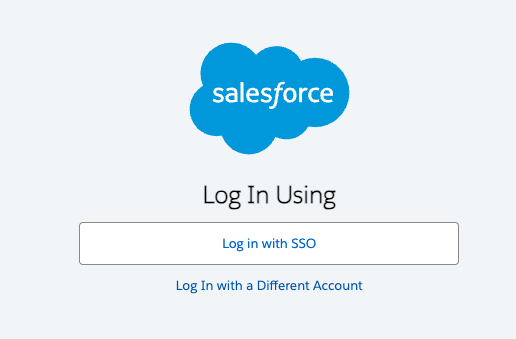
Click “Log in with SSO”
You will see this screen. Click the Log in with SSO button.
3
Sign in with your Microsoft work account
You will be sent to the Microsoft sign-in page. Enter your Waterfront Alliance email address and password, then complete the verification prompt (Authenticator app or text code).
If you are already signed in to Microsoft (Outlook, Teams) in this browser, this step may be skipped automatically.
4
You’re in
Salesforce opens on your home page. Next time, clicking Log in with SSO usually takes you straight in.
Don’t use “Log In with a Different Account.” That link is for the old username-and-password login and is not needed for day-to-day access.
Trouble signing in?
- No SSO button? Check that the address in your browser is waterfrontalliance.lightning.force.com, not login.salesforce.com.
- Signed in as the wrong Microsoft account? Open a private/incognito window and try again, or sign out of Microsoft first.
- Microsoft sign-in works but Salesforce shows an error? Your Salesforce user may not be linked yet. Send a screenshot of the error to your Salesforce administrator.